Sample Node.js Programs
The Node.js API for ClockworkDB allows you to interact with the engine, repositories, datastores, and data using Node.js code. Below are some sample Node.js programs that demonstrate how to use the API to interact with the configured repositories and datastores in your environment. These programs can all be found in the examples/ directory of the source code, and you can run them after installing the package and setting up your environment.
The first concept to understand are the core classes in the API, which are organized in a hierarchy as shown in the diagram below. The Engine is the top-level class that manages everything, and you can use it to get Providers, Sessions, Connections, Datastores, TimeSeries, and Vector objects to interact with your data.
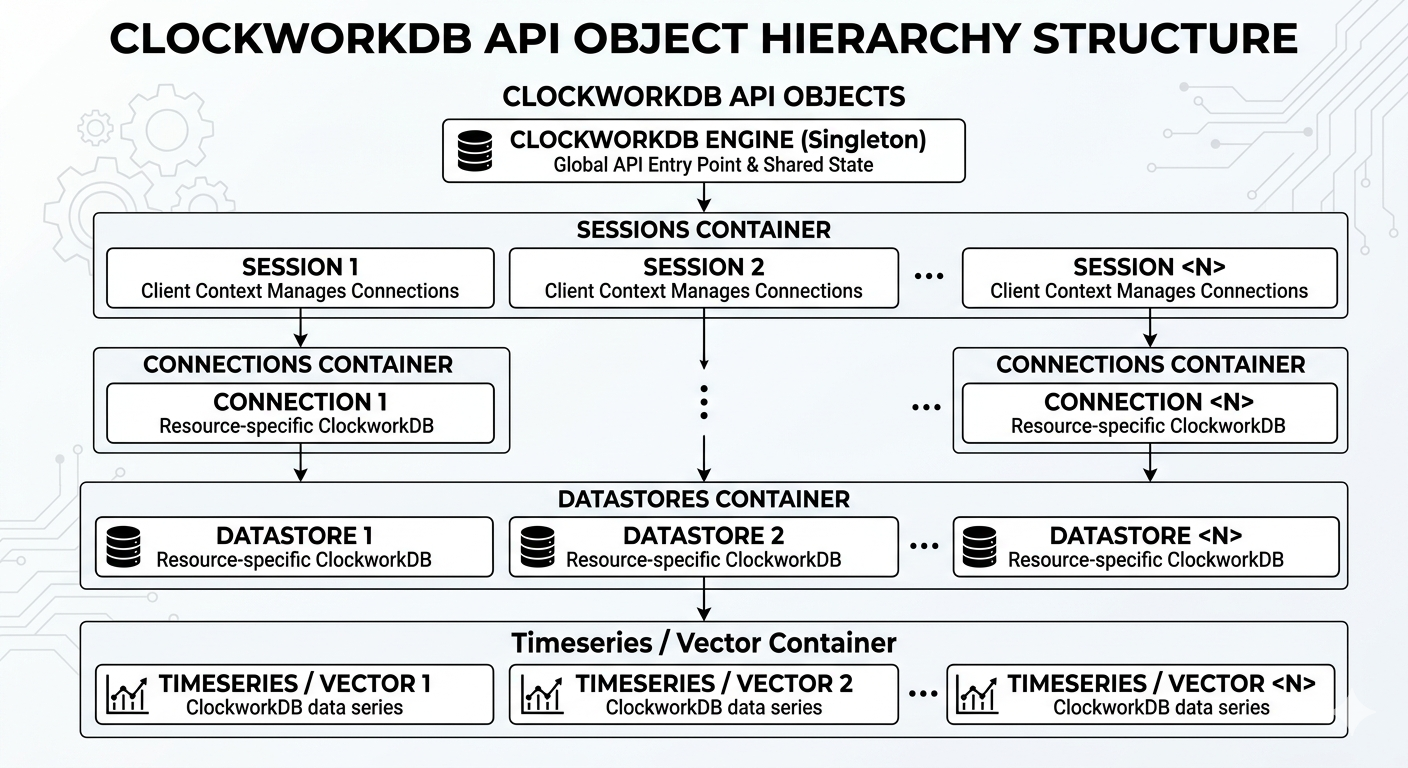
Providers are modules, some might call them plugins, that provide access to a particular storage solution, like WarpDrive+, KDB+, Cassandra, ScyllaDB, Oracle, MS SQL Server, [My|Maria]DB, PostgreSQL, InfluxDB, DuckDB, Parquet, or a flat file system. You can have multiple providers in your environment, and each provider can have one or more repositories configured within it.
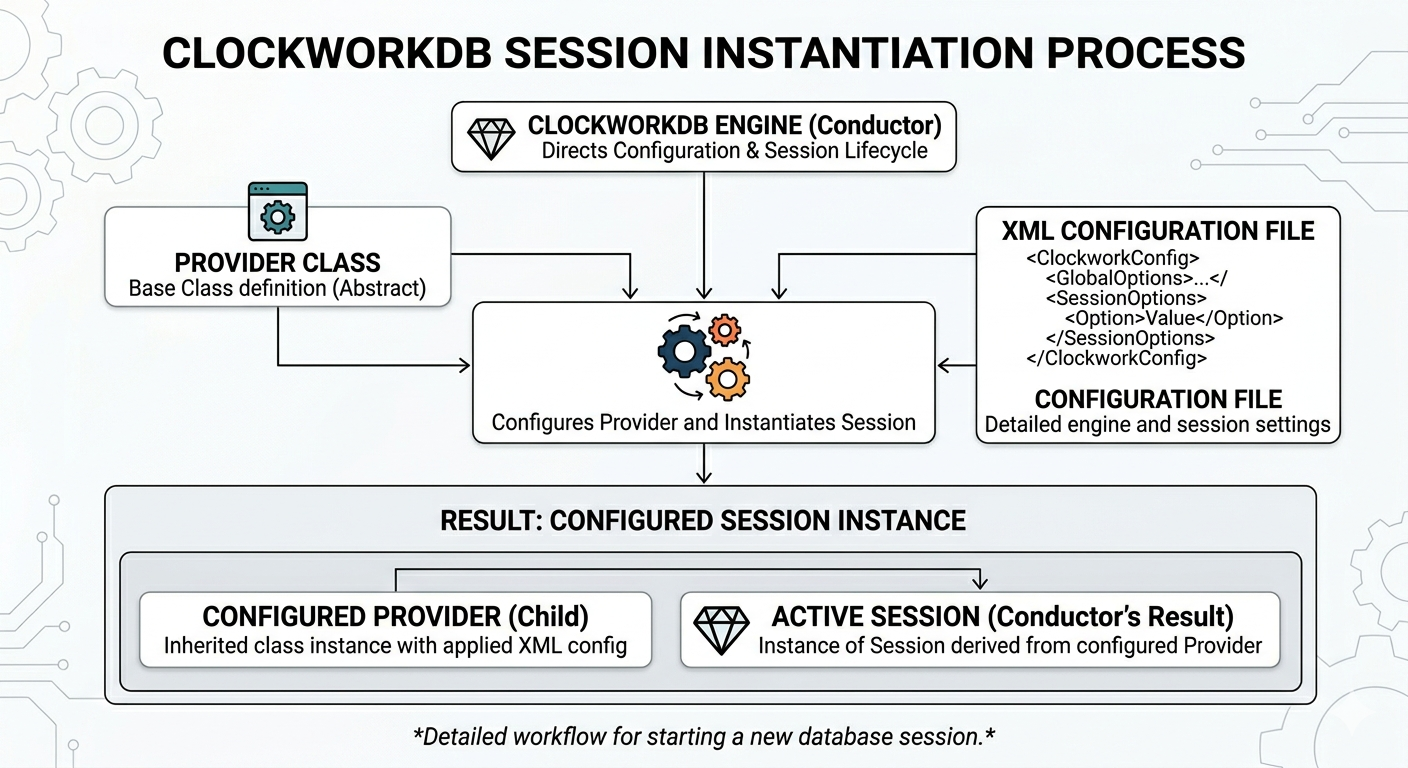
List configured Repositories
You can use the cdb-repositories command line tool to list the repositories available in your environment, and then use the repository names in your Node.js programs to create sessions and interact with the data. The code below mimics the behavior of the cdb-repositories tool, however, it uses the Node.js API to interact with the engine and print out the repository metadata.
Code:
#!/bin/env node

// Don't need much for this simple task
import { Engine, RepositoryMetaData } from 'clockworkdb';

// The engine class is a singleton responsible for managing sessions and repositories.
// You ALWAYS get an instance of the engine using Engine.Instance()
const eng = Engine.Instance()

// This asks the engine for metadata about the repositories configured in the environment,
// and prints out the name, description, and module provider for each repository.
for (const repo of eng.getRepositories()) {
    console.log(repo.toString());
    console.log(`Repository Name: ${repo.name()}`);
    console.log(`  Description: ${repo.description()}`);
    console.log(`  Module: ${repo.module()}`);
    console.log();
}
Output:
Repository Name: warp1
  Description: WarpDrive+ Data (2k/16k)
  Module: mod_warpdrive
List Repository Datastores
You can use the cdb-datastores command line tool to list the datastores available in a given repository, and then use the datastore names in your Node.js programs to interact with the data. The code below mimics the behavior of the cdb-datastores tool, however, it uses the Node.js API to interact with the engine and print out the datastore metadata for a given repository.
Code:
#!/bin/env node

import { Engine, Session, Connection, Datastore, AccessMode, DatastoreMatch } from 'clockworkdb';

const e = Engine.Instance()

// get a session for the "warp1" repository, which is configured in the environment.
// You can have multiple repositories configured, and you can get sessions for any of them by name.
var session = e.getSession("warp1")

// If you pass nothing to get_session(), it will use the default repository configured in your
// environment, which is often what you want.
// var session = e.getSession()

// WarpDrive+ is embedded in the same process as your Node.js program, so you can get a direct
// connection to the data store
var connection = session.getConnection()

// This asks the connection for metadata about the datastores configured in the repository,
// and prints out the name of each datastore.
for ( const ds of connection.getDatastores()){
    console.log(`Datastore Name: ${ds.name()}`);
}
Output:
Datastore Name: co-insider-transactions.wdb
Datastore Name: co-logo.wdb
Datastore Name: co-news.wdb
Datastore Name: co-peers.wdb
Datastore Name: co-profile.wdb
Datastore Name: fxdata.wdb
Datastore Name: market-news.wdb
Datastore Name: mktdata.wdb
Datastore Name: normal.ann.wdb
Datastore Name: normal.wdb
Datastore Name: sec-master.wdb
Datastore Name: stac-test.wdb
Catalog a Datastore
You can use the cdb-catalog command line tool to print out the catalog of a given datastore, which includes the timeseries and vectors stored in the datastore. The code below mimics the behavior of the cdb-catalog tool, however, it uses the Node.js API.
Code:
#!/bin/env node

import { Engine, Session, Connection, Datastore, AccessMode, DatastoreMatch } from 'clockworkdb';


// should be looking normal. Get an engine instance, get a session for the "warp1" repository, and get a connection,
// and then a datastore for the "mktdata" datastore in that repository. NOTE: we open the datastore in read-only mode,
// which is all we need to do to list the objects in it.
const e = Engine.Instance()
var session = e.getSession("warp1")
var connection = session.getConnection()
var datastore = connection.getDatastore("mktdata", AccessMode.ReadOnly())

// Then we can do a regex search for all objects in that datastore and print their names.
for (const match of datastore.regexNameSearch(".*")){
    console.log(`Object Name: ${match.name()}`);
}
Output:
Object Name: A.ADJUSTED
Object Name: A.CLOSE
Object Name: A.HIGH
Object Name: A.LOW
Object Name: A.OPEN
Object Name: A.VOLUME
Object Name: AA.ADJUSTED
Object Name: AA.CLOSE
Object Name: AA.HIGH
Object Name: AA.LOW
Object Name: AA.OPEN
Object Name: AA.VOLUME
Object Name: AACG.ADJUSTED
Object Name: AACG.CLOSE
Object Name: AACG.HIGH
...
Object Name: ZWS.CLOSE
Object Name: ZWS.HIGH
Object Name: ZWS.LOW
Object Name: ZWS.OPEN
Object Name: ZWS.VOLUME
Object Name: ZYME.ADJUSTED
Object Name: ZYME.CLOSE
Object Name: ZYME.HIGH
Object Name: ZYME.LOW
Object Name: ZYME.OPEN
Object Name: ZYME.VOLUME
Object Name: ZYXI.ADJUSTED
Object Name: ZYXI.CLOSE
Object Name: ZYXI.HIGH
Object Name: ZYXI.LOW
Object Name: ZYXI.OPEN
Object Name: ZYXI.VOLUME
Display timeseries/vector metadata
You can use the cdb-ts-meta command line tool to print out the metadata of a given timeseries or vector, which includes information about the object such as its name, type, number of records, and other relevant metadata. The code below mimics the behavior of the cdb-ts-meta tool, however, it uses the Node.js API.
Code:
#!/bin/env node

import { Engine, Session, Connection, Datastore, AccessMode, DatastoreMatch,
    TimeSeries, Calendar, Date, DateTime
 } from 'clockworkdb';

// The name of the timeseries/vector we want to get metadata for.
const ts_name = "nvda.close"

// normal setup to get at the datastore. We get an engine instance, then a session for the "warp1" repository,
// then a connection, and then a datastore for the "mktdata" datastore in that repository.
// NOTE: we open the datastore in read-only mode, which is all we need to do to get metadata about the timeseries stored in it.
const e = Engine.Instance()
var session = e.getSession("warp1")
var connection = session.getConnection()
var datastore = connection.getDatastore("mktdata", AccessMode.ReadOnly())

// check to see that we have the timeseries/vector in the datastore, and if we do, get it and print out its metadata.
// If not, print an error message and exit.
if( ! datastore.hasTimeSeries(ts_name) ){
    console.log("Time series {ts_name} not found in datastore.");
    datastore.close()
    process.exit(1)
}
// If we have the timeseries/vector, we can get it from the datastore and print out its metadata, including its
// name, type, calendar, creation and modification dates, first and last dates, and count of records.
var ts = datastore.getTimeSeries(ts_name)
console.log(`Time Series Name: ${ts.name()}`)
console.log(`  Type:        ${ts.getDataType().name()}`)
console.log(`  Calendar:    ${ts.getCalendar().name()}`)
console.log(`  Created:     ${ts.getCreateDate()}`)
console.log(`  Modified:    ${ts.getModifyDate()}`)
console.log(`  First Date:  ${ts.getFirstDate()}`)
console.log(`  Last Date:   ${ts.getLastDate()}`)
console.log(`  Count:       ${ts.getLastDateInt() - ts.getFirstDateInt() + 1}`)
Output:
Time Series Name: NVDA.CLOSE
    Type:        Float
    Calendar:    Business
    Created:     2024-Mar-02 21:26:58
    Modified:    2026-Feb-15 13:37:18
    First Date:  1970-Jan-02
    Last Date:   2026-May-22
    Count:       14,641
Display timeseries/vector data
You can use the cdb-ts command line tool to print out the data of a given timeseries or vector, which includes the date and value of each record in the timeseries or vector. The code below mimics the behavior of the cdb-ts tool, however, it uses the Node.js API.
Code:
#!/bin/env node

import { Engine, Session, Connection, Datastore, AccessMode, DatastoreMatch,
    TimeSeries, Calendar, Date, DateTime, Float
 } from 'clockworkdb';

// The name of the timeseries/vector we want to get metadata for.
const ts_name = "nvda.close"

// normal setup to get at the datastore. We get an engine instance, then a session for the "warp1" repository,
// then a connection, and then a datastore for the "mktdata" datastore in that repository.
// NOTE: we open the datastore in read-only mode, which is all we need to do to get metadata about the timeseries stored in it.
const e = Engine.Instance()
var session = e.getSession("warp1")
var connection = session.getConnection()
var datastore = connection.getDatastore("mktdata", AccessMode.ReadOnly())

// check to see that we have the timeseries/vector in the datastore, and if we do, get it and print out its metadata.
// If not, print an error message and exit.
if( ! datastore.hasTimeSeries(ts_name) ){
    console.log("Time series {ts_name} not found in datastore.");
    datastore.close();
    process.exit(1);
}
// If we have the timeseries/vector, we can get it from the datastore and print out its metadata, including its
// name, type, calendar, creation and modification dates, first and last dates, and count of records.
var ts = datastore.getTimeSeries(ts_name);
var calendar = ts.getCalendar()

// print all values in the time series. Note that the observations are returned as DatedObservation objects.
console.log(`Time Series Name: ${ts.name()}`);
for (const obs of ts.fullRange() ){
    console.log(obs.toString());
}

// print the number of data points in the time series.
console.log(`\nData points: ${ts.fullRange().length()}\n`);

// print out data for a specific date range. In this case, we print out all observations for December 2025.
console.log("\nDecember 2025 Observations:\n==============================\n")
for (const obs of ts.range(Date( 2025, 12, 1), Date(2026, 1, 1)) ){
    if (obs.isNormal()) {
        console.log(`${obs.dateAsString()}, ${Float(obs.observation()).value()}`)
    }
}
Output:
Time Series Name: NVDA.CLOSE
1970-Jan-02: 1.9375
1970-Jan-05: 1.96875
1970-Jan-06: 1.96484399
1970-Jan-07: 1.953125
1970-Jan-08: 1.95703101
1970-Jan-09: 1.96484399
1970-Jan-12: 1.94921899
1970-Jan-13: 1.94140601
1970-Jan-14: 1.94531298
...
2026-Apr-29: 154.669998
2026-Apr-30: 154.330002
2026-May-01: 152.75
2026-May-04: 153.690002
2026-May-05: 154.880005
2026-May-06: 148.690002
2026-May-07: 146.580002
2026-May-08: 144.570007
2026-May-11: 149.679993
2026-May-12: 150.630005
2026-May-13: 151.570007

Data points: 14704


December 2025 Observations:
==============================

2025-Dec-01, 116.63
2025-Dec-02, 115.38
2025-Dec-03, 117.80
2025-Dec-04, 117.14
2025-Dec-05, 116.54
2025-Dec-08, 115.98
2025-Dec-09, 118.25
2025-Dec-10, 119.54
2025-Dec-11, 119.54
2025-Dec-12, 118.82
2025-Dec-15, 117.76
2025-Dec-16, 114.68
2025-Dec-17, 117.41
2025-Dec-18, 116.54
2025-Dec-19, 116.69
2025-Dec-22, 118.15
2025-Dec-23, 119.42
2025-Dec-24, 119.22
2025-Dec-26, 119.11
2025-Dec-29, 120.53
2025-Dec-30, 120.99
2025-Dec-31, 120.34